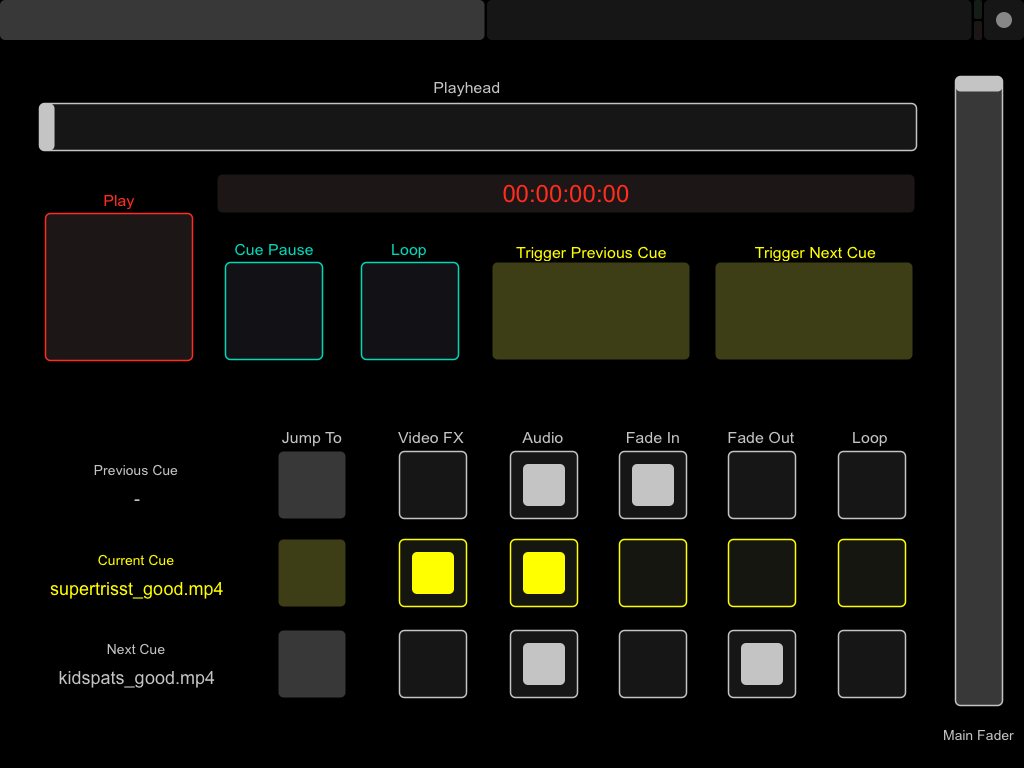
Mitti has extensive support for the OSC protocol. If you are not already familiar with OSC, it is a standard network protocol for communication between computers and multimedia devices. It does not require specialized hardware, just uses networking infrastructure that is often already in place.
OSC Input
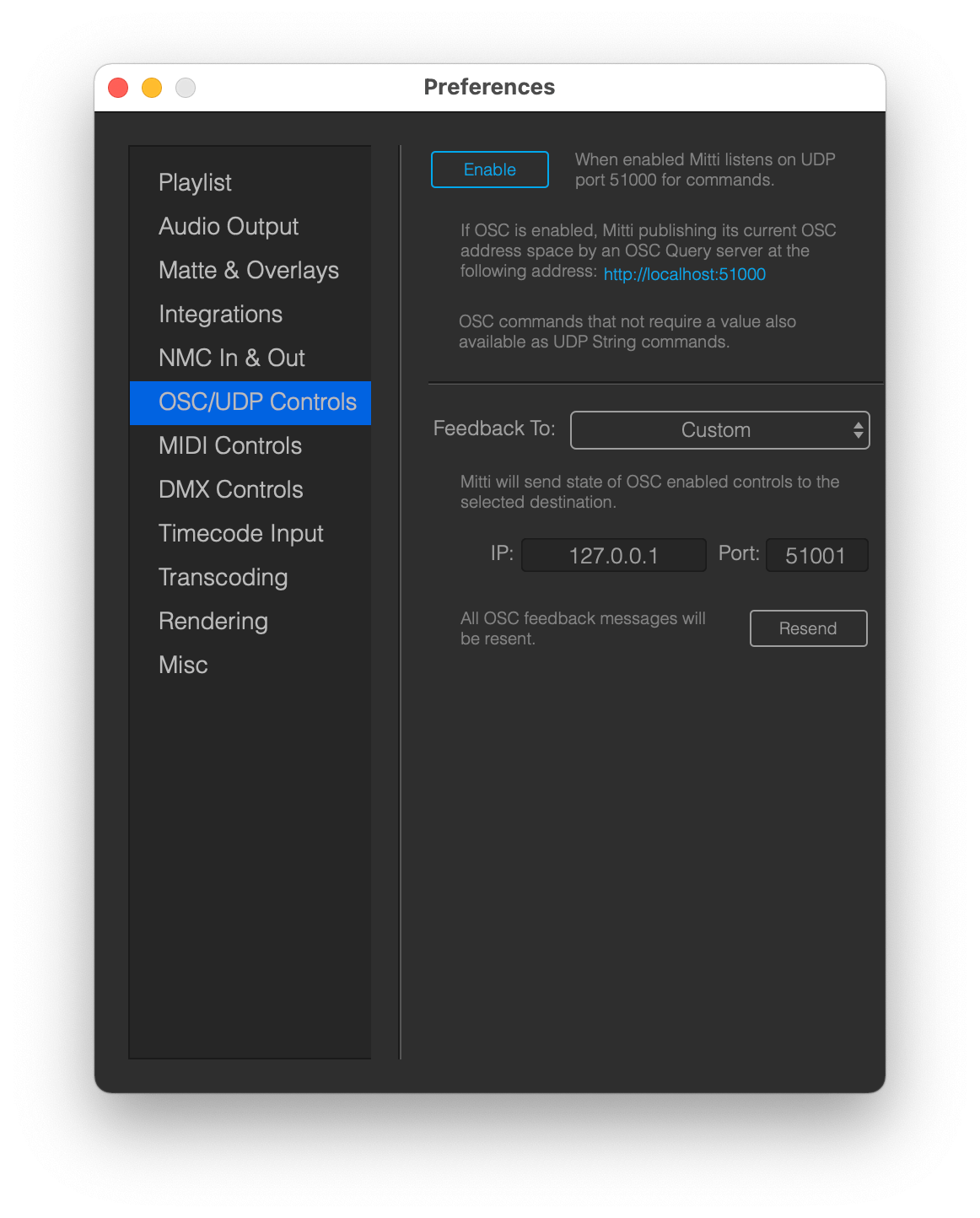
The make Mitti listen to OSC commands first you need to enable OSC Controls in the Preferences. Once you enabled, Mitti will listen to incoming OSC commands on UDP port 51000.
When OSC control is enabled, Mitti will also start an OSC Query Server on the same port, so the current address space will be browsable in your web browser by opening the address of the server: http://localhost:51000, and applications like Vezér which also supports the OSC Query protocol will be able to discover Mitti's current OSC address space.
OSC Commands that not require any value like mitti/play also available as UDP String commands.
OSC commands
The full list of available commands available thru Mitti's OSC Query server, so you can check out the available commands in your web browser by visiting the address: http://localhost:51000
There are 2 levels of commands:
- Master-level
- Cue-level
OSC commands always starts with /mitti/.
For toggle-style controls Mitti usually provide multiple commands which allows finer settings. An example is starting playback of Mitti, which is available by /mitti/play without sending any values with the OSC command, but also available by /mitti/togglePlay with an int 1 value. The first command is great if you are sending commands from a host that supports OSC Flags like Vezér, while the second version is great for controlling Mitti with controllers like TouchOSC.
Master-level Commands
The syntax of master-lever commands are the following: /mitti/{command}.
For example /mitti/play will start playback of the Playlist.
Cue-level Commands
The syntax of cue-lever commands are the following: /mitti/{cuenumber}/{command}.
For example, /mitti/1/opacity will change the opacity of the 1st Cue.
Address all Cues:
You can use the /all/ keyword to send an OSC message to all Cues.
This means /mitti/all/opacity will change the opacity of all Cues.
Address selected Cues:
You can use the /selected/ keyword to send an OSC message to all selected Cues.
This means /mitti/selected/opacity will change the opacity of all selected Cues.
Cue-relative addressing:
Mitti provides 3 special keywords that could be used for Cue-relative addressing - so instead of referring to an exact ` you can use one of the following keywords:
- current
- previous
- next
This means /mitti/current/opacity will controlling the opacity of the current Cue, while /mitti/next/opacity will controlling the opacity of the next Cue.
OSC Feedback
When you enable OSC feedback, Mitti will send out OSC commands corresponding to Mitti's input commands to the selected target. If multiple commands are available for controlling the same thing, Mitti will only send that version which supports values, for example /mitti/play won't be ever sent, but /mitti/togglePlay with the corresponding value will.
Cue-relative addresses will be always sent too, for example /mitti/1/opacity will be followed by a /mitti/current/opacity.
There are a couple of informative OSC feedback messages which will be sent, but these commands are read-only, so available only to the OSC Feedback target, and cannot be used for controlling Mitti:
/mitti/time: the current time of the Playlist in hh:mm:ss:ff format/mitti/cueTimeLeft: the time left of the Current Cue of the Playlist in hh:mm:ss:ff format/mitti/cueTimeElapsed: the time elapsed on the Current Cue of the Playlist in hh:mm:ss:ff format/mitti/previousCueName: the name of the previous Cue/mitti/nextCueName: the name of the next Cue/mitti/currentCueName: the name of the current Cue/mitti/currentCueTRT: the TRT of the current Cue
With the Resend button you can resend all OSC feedback to the OSC feedback target. Sending to Mitti the OSC command /mitti/resendOSCFeedback has the same effect.
An example TouchOSC Layout can be found here.