
The Mitti Stream Deck plugin lets you streamline your live event control by assigning essential commands to physical buttons for quick access. With just a single press, you can start and stop cues, navigate playlists effortlessly, and receive real-time status updates - all from your Stream Deck.
Seamless Communication via OSC
The plugin leverages OSC (Open Sound Control) technology to maintain a robust connection between Mitti and your Stream Deck controller.
To enable real-time feedback functions, ensure that OSC feedback is activated in Mitti and set to port 51001 on localhost.
Installation
Prerequisite
Before installing the plugin, make sure you have:
- Mitti 2.2.8 or later (upgrading to the latest version is recommended for full functionality).
- The latest version of Stream Deck Software.
- The latest Mitti Stream Deck plugin - 👉Download it from us👈 or
- get it from the 👉Elgato Marketplace 👈!
Installation Steps
- Download the Mitti Stream Deck plugin.
- Double-click the
.sdPluginfile - this will automatically launch the Stream Deck application and install the plugin. - The plugin comes with default profiles for your Stream Deck devices, but you can also find them in the "/profiles" folder next to the plugin if you need them later.
How to use it
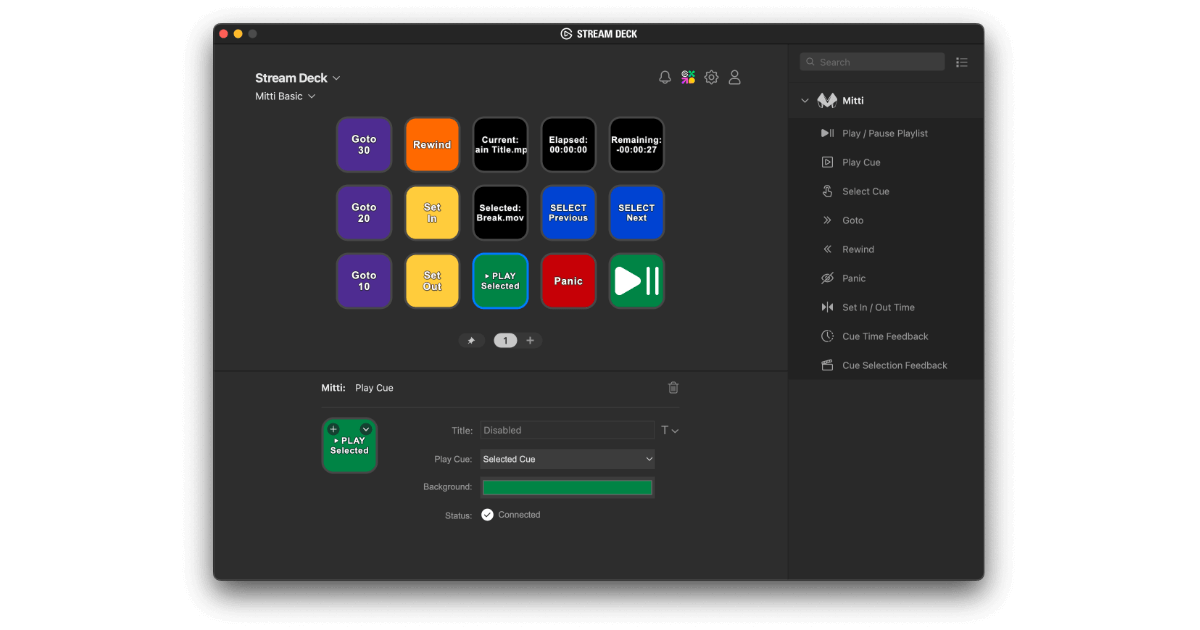
After installation, scroll down the right-hand panel in the Stream Deck app to view all available Mitti controls. You can drag and drop these controls onto the Stream Deck buttons on the left, and they will automatically display the corresponding icons.
Clicking on any assigned button lets you customize its settings, such as selecting a Cue ID to trigger, adjusting the background color, and more.
Don’t forget to enable OSC feedback in Mitti and set to port 51001 on localhost to make feedback functions working.
Now, you're all set to enhance your control over Mitti with a smoother, more responsive workflow! 🚀