
Mitti can be set to output on one or more external displays in the Video Output Setup. When you launch Mitti while an external display is connected, it will automatically set a fullscreen output on that displays for new projects.
In case Fullscreen Output does not go to the external screen, below are the common reasons and their solutions.
Yellow/Orange dot on Fullscreen Outputs
That dot on external screens is a security "feature" of macOS Monterey - that indicates an application is using an audio input. In case of Mitti, it is most likely the LTC audio source: please go to Mitti's Preferences, select Timecode Input, and selected "Disabled" for the LTC source.
If the dot is still remaining, check if there is an other application running that is using an audio input. Click on the Control Center icon on macOS's menu bar to find out which.
If what is still using audio input is still Mitti, then possibly your audio device has both input and output, which makes this macOS security feature behave a little oddly. A real life example is a Dante IO USB adapter. The trick is to make Monterey stop showing the orange dot is selecting something totally different in macOS's Sound setting as the default output. Then, in Mitti, you can safely select the Dante IO adapter as Audio Output, and no orange dot will appear.
If you’re using macOS 14.4 Sonoma or later, follow this Apple provided instruction to turn off orange dots on external displays: https://support.apple.com/en-us/118449
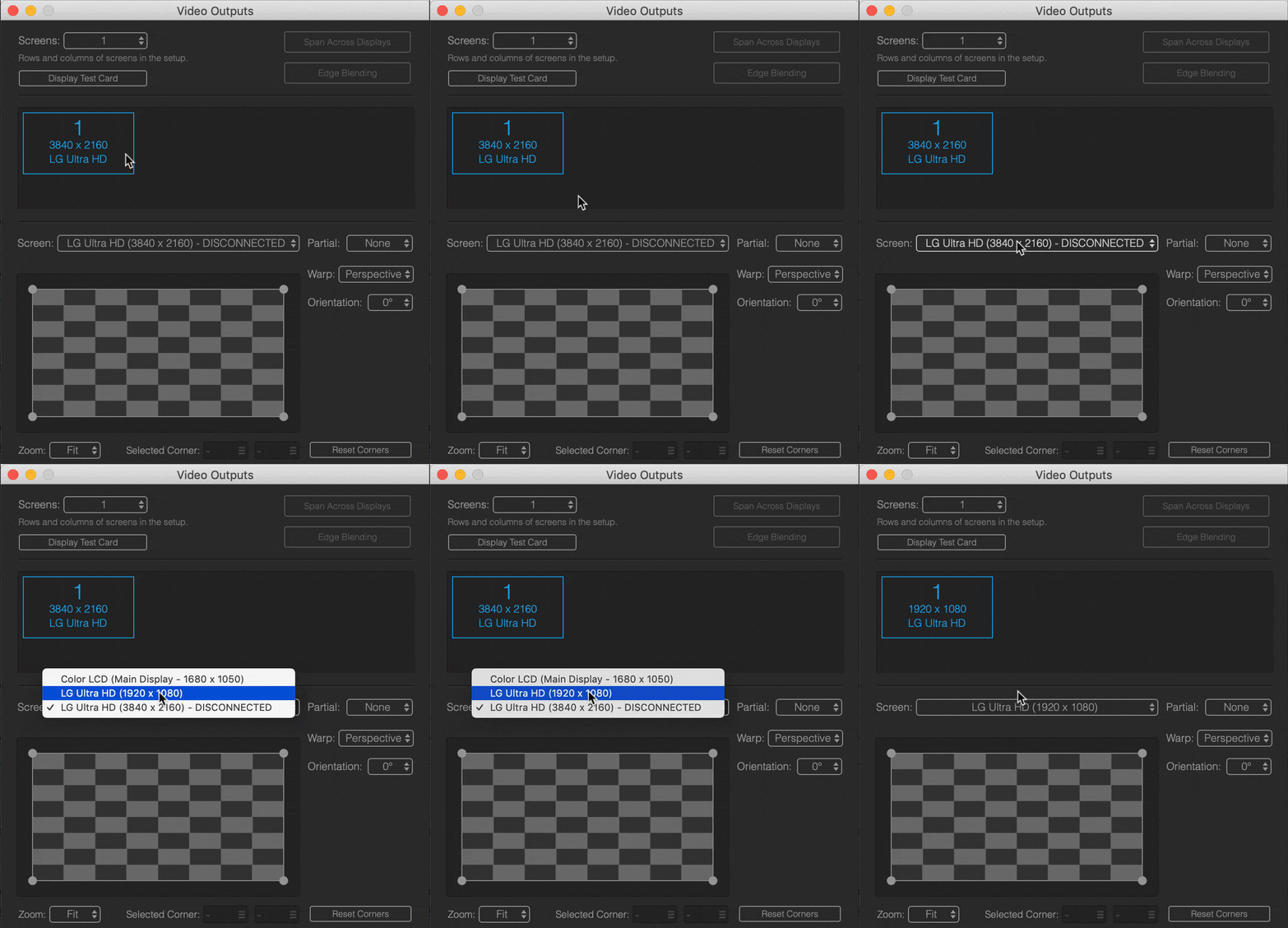
Device is disconnected
If you saved your Project File with different displays attached then it has now, Mitti will mark those displays disconnected. This means those displays are still set for fullscreen output, and Mitti will automatically use them again when they come online.
This also happens when you change the resolution of one or more external displays that has been set to be output for fullscreen.
In case the device or output resolution changed permanently (for example you worked on a project at home on a monitor, but the venue has a projector), best to change the Screen for the Output to the new one - see below:
Preview Stuttering
If you're experiencing stuttering in Mitti’s Preview within the user interface, but the actual output appears smooth, you may need to enable “Displays have separate Spaces” in System Settings > Desktop & Dock on macOS.
Based on our findings, this issue primarily affects M2 based systems running macOS 14 Sonoma with mixed output configurations - such as using both Blackmagic and regular display outputs in the same setup.