
For file based media, Mitti - since version 2.8 - automatically track and update location and file name changes on the local computer.
Supported formats
Mitti can play files in any format supported by AVFoundation (the library used by Mitti for video decoding), listed in order of preference, for videos without transparency:
- ProRes 422
- H.264
- HEVC (H.265)
- HAP
- HAP Q
For videos with transparency:
- ProRes 4444
- HEVC
- HAP Alpha
- HAP Q Alpha
Mitti prefers pre-multiplied alpha for transparent videos.
With systems where Apple AfterBurner card is present, or with the Apple M1 Pro and Max chip based computer Mitti will leverage its power with hardware accelerated ProRes decoding, so this case ProRes is the best choice ultimately.
In other cases, videos at 4K resolution and over, HAP could perform better than ProRes if you are outputting to external screens thru HDMI/DisplayPort/VGA/DVI. For more info about the GPU accelerated HAP codec family, please check out https://hap.video
But if you are only output to SDI (via BlackMagic Output) output, ProRes is generally the best choice of codec for you, because that case Mitti needs to send pixel data with the CPU instead of the GPU.
The list of supported codecs can be appended by a number of other common formats if you have Apple's Pro Video Formats Bundle installed.
Still Images are also supported in the most common formats, but we recommend PNG and JPG. Mitti can also render PDF files.
10 bit rendering
To leverage the wider color range of 10 bit rendering, your source media files should use 10 bit color depth too. These codecs are supported for video:
- ProRes
- HEVC
For still images you can use:
- HEIF
- TIFF
Subtitles & Closed Captions
Mitti 2.5 is now able to render sidecar .SRT and .SCC files, as well as Quicktime embedded CEA-608 caption tracks on outputs, as open caption. Whenever you add a video to the playlist, Mitti checks for embedded caption tracks and supported sidecar files.
For Mitti to be able to recognize a sidecar file, it's name should start as the same as the video. For example, both of these file names will be good if your video is "myvideo.mov":
- "myvideo.srt"
- "myvideo_eng.srt"
You can also see and change the start time of the selected subtitle on this panel.
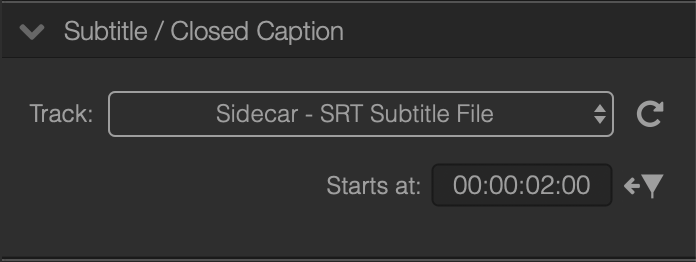
You can change the Font Size and Family in Preferences, as well as the default Font and Background colors.
Please note: both SRT subtitles and CEA-608 captions are allowed to set specific colors on a per-character basis!
You can toggle rendering of Subtitles / Closed Captions on each output in Mitti's Video Output Settings, and even on Preview from the View... menu.
Please note sending CC data thru SDI as VANC data when using Blackmagic Output is currently not supported!
Transcode to ProRes/HAP
Got new and untested files last minute? No problem, you can transcode them to the recommended ProRes or HAP video codec from the Cue right-click menu. Audio tracks will remain untouched.
Transcoded files are added to the ~/Movies/Mitti/Transcoded folder with the ProRes or HAP suffix.