
User Interface
All Cues have the same general UI, with two states: collapsed and expanded - the default can be set in Preferences... - Playlist.
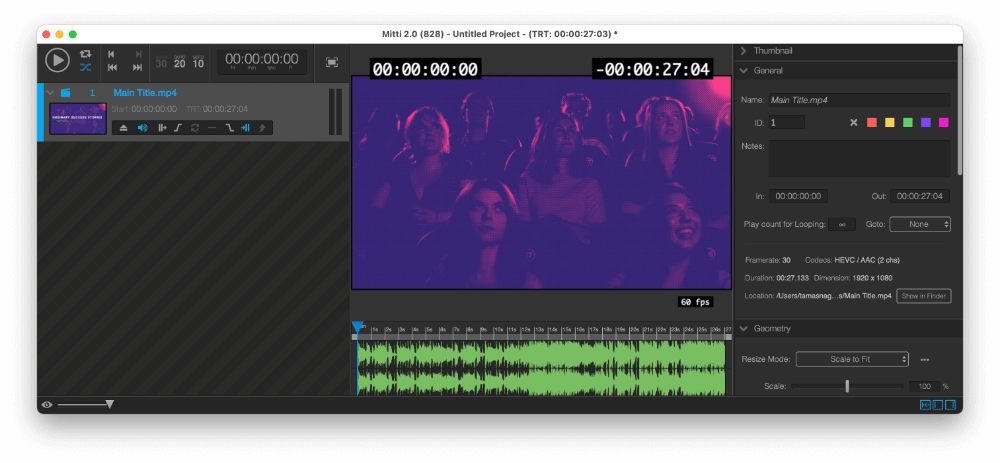
The expanded state will show you the Cue In and Out Time or the TRT, depending of what you set in the View... menu, as well as the following Cue Options:
- Replace Cue Source: replace the file or rebuild the Source menu of the Cue Inspector.
- Audio Toggle: enables/disables audio on the Cue.
- Pause at Beginning: playback will pause after reached the Cue's start point.
- Fade In: makes the Cue Fading In when it starts.
- Cue Loop: makes the Cue looping.
- Transition to Next Cue Toggle: enables/disables Transition to the Next Cue.
- Fade Out: makes the Cue Fading Out before it stops.
- Pause at End: playback will pause when the Cue's end point reached.
- Goto: if this is enabled, Mitti will jump to the target Cue instead of the next one in the playlist.
Defaults Cue Toggles in Playlist Preferences
You can also set the default state of common Cue Toggles - so the toggle-states defined here will be applied whenever you create a new Cue.
Switch between Cues
Once you have multiple Cues, there will be always a current one. The Current Cue's Title and Cue Number will be drawn by blue, and the Playhead Slider will be attached to the Current Cue.
Usually you select a Cue and hit ENTER to play it, but of course you can use Transport Controls, and JUMP commands like double-click will work too, as described in the Getting Started section.
Reorder Cues
The reorder one or more Cue, select them, hold down the mouse button and drag them to the new location.
Selecting Cues
To select Cues, you can use the UP ARROW and DOWN ARROW keys, as well as your left mouse button. CMD and SHIFT can be used as modifiers just like in Finder.
Removing Cues
To remove one or more Cues, select them and hit CMD+DELETE.
Right-Click menu
Right-clicking on one or more Cues will popup a contextual menu where you can access various options, start transcoding, etc.
Search for Cue ID
You can search for a Cue ID - more info the General section below - by typing numbers & letters to the Playlist. Mitti will scroll to and select the cue with matching Cue ID.