
You can access the Cue Preferences from the Cue Inspector on the right-side. The tabs can be collapsed and expanded just like Cues.
While some options are related to specific Cue types, most of them are common and available for almost all types of Cues. Here is a list of the most common options.
Media Info
Here you will find information about the selected cue - codecs, duration, framerate, dimension and location.
General
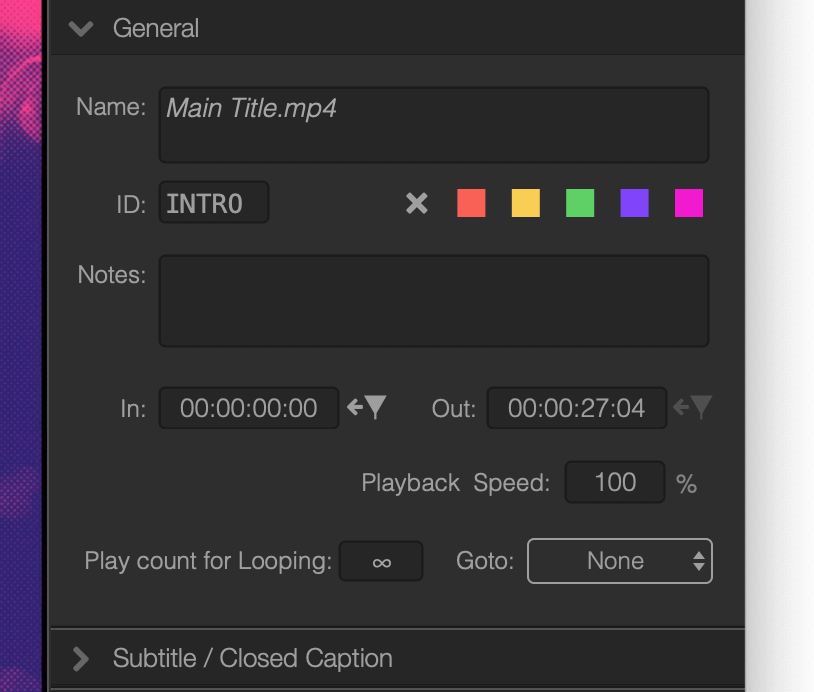
In the General section you will find the following options:
- Name: the name of a Cue is the filename by default. You can change it here.
- Cue ID: Cues have a maximum 6 characters long ID. By default, this ID is their index in the playlist. You can use this ID with OSC messages, as well as with on-screen search.
- Color Tags: there are 5 built-in background colors you can choose to group you Cues, either from the here or from the right-click menu. If you click on the Color Tag icon on a Cue's left side, it will select all Cues with the same Color Tag.
- Notes: you can write memos.
- In/Out: you can specify the Cue In/Out points here, but you can also modify these by dragging the throttles on the Playhead View.
- Play Count for Looping: now you can select how many times you want to the Cue to play looped. If this is not infinite, Mitti allows you to turn on Transition, Goto and Pause at End for the last loop.
- Playback Speed: for movie files, you’ll find the current playback speed here, in percent. You can also change the playback speed here.
- Goto: you can specify a target Cue here, where Mitti should jump when it is played out.
Geometry Controls
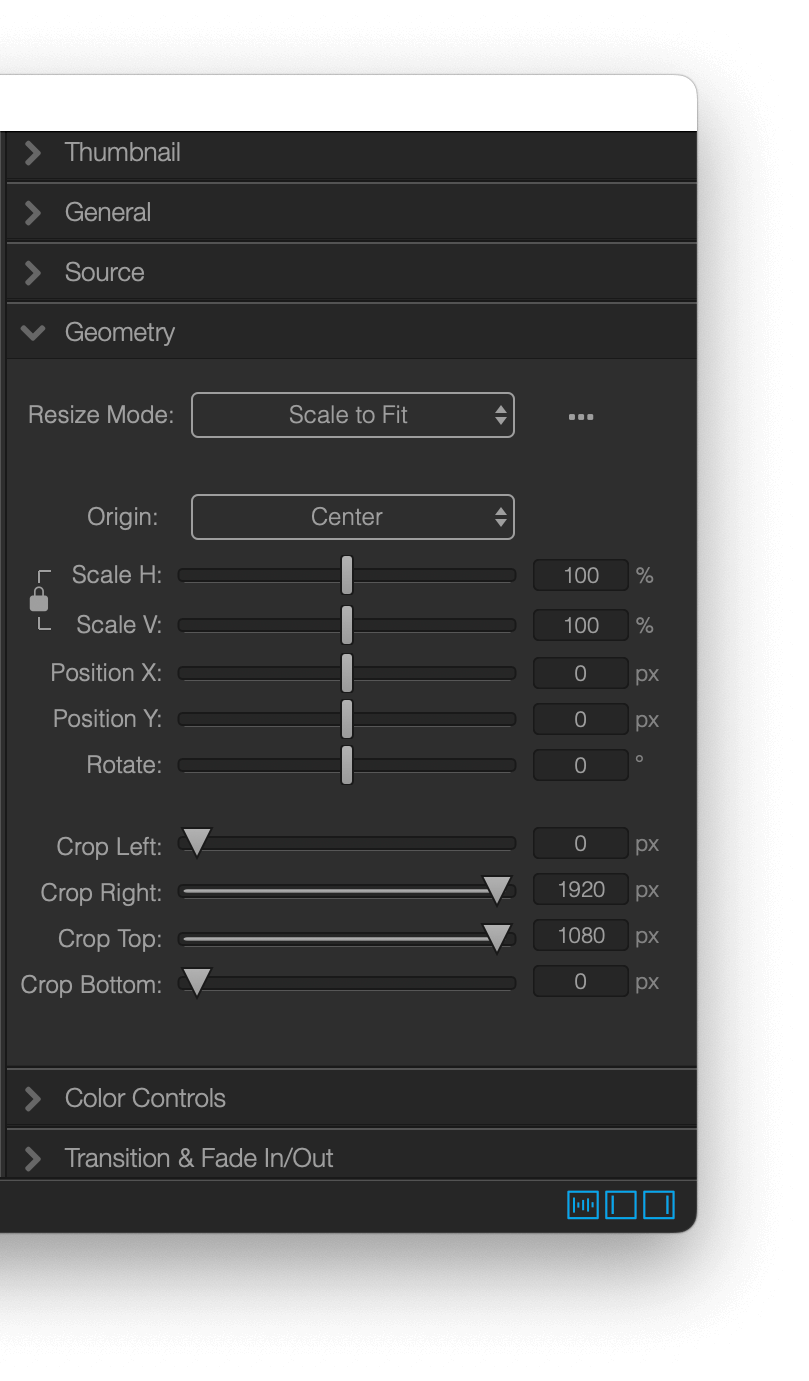
This is where you can set what Mitti should do when the dimensions of the selected media does not match to the output rendering dimension (Canvas) - Fit/Fill/Stretch/Unscaled are your options.
You can also Rotate, Scale, Position or Crop your Cue here.
Color Controls
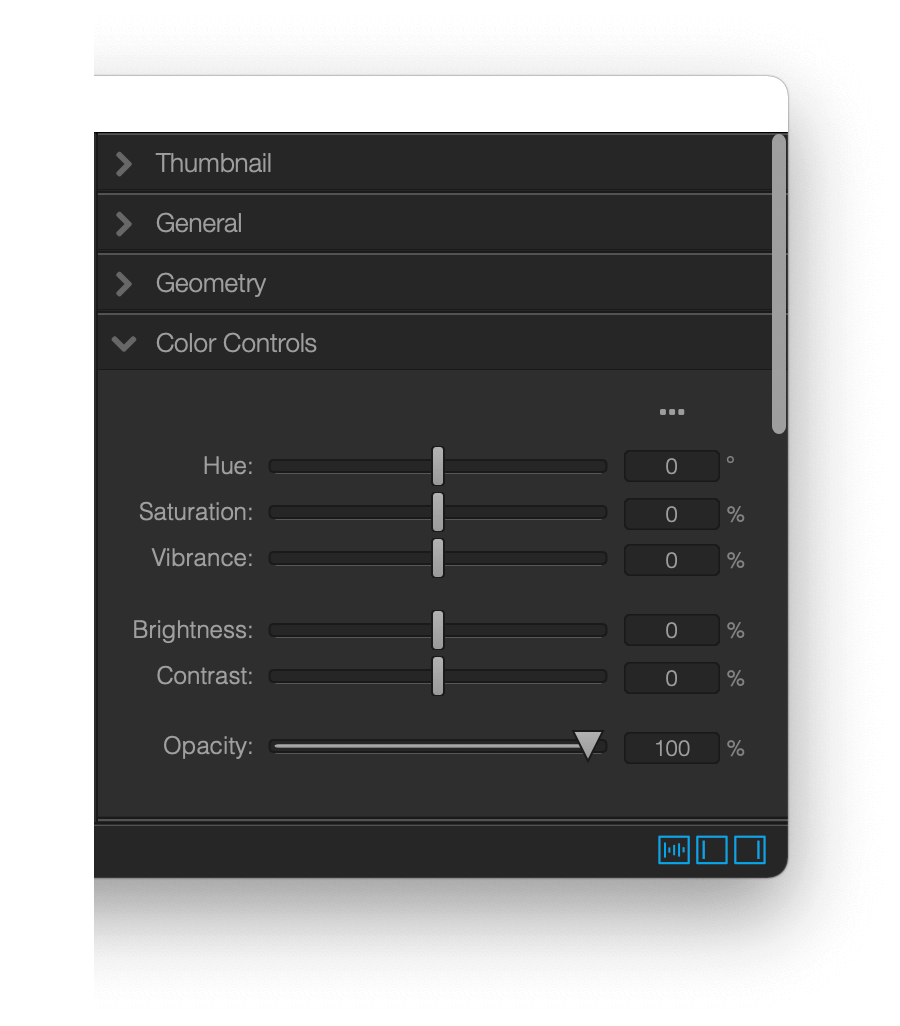
With Color Controls you can set the opacity, brightness, contrast, HSV for each Cue.
Audio Output
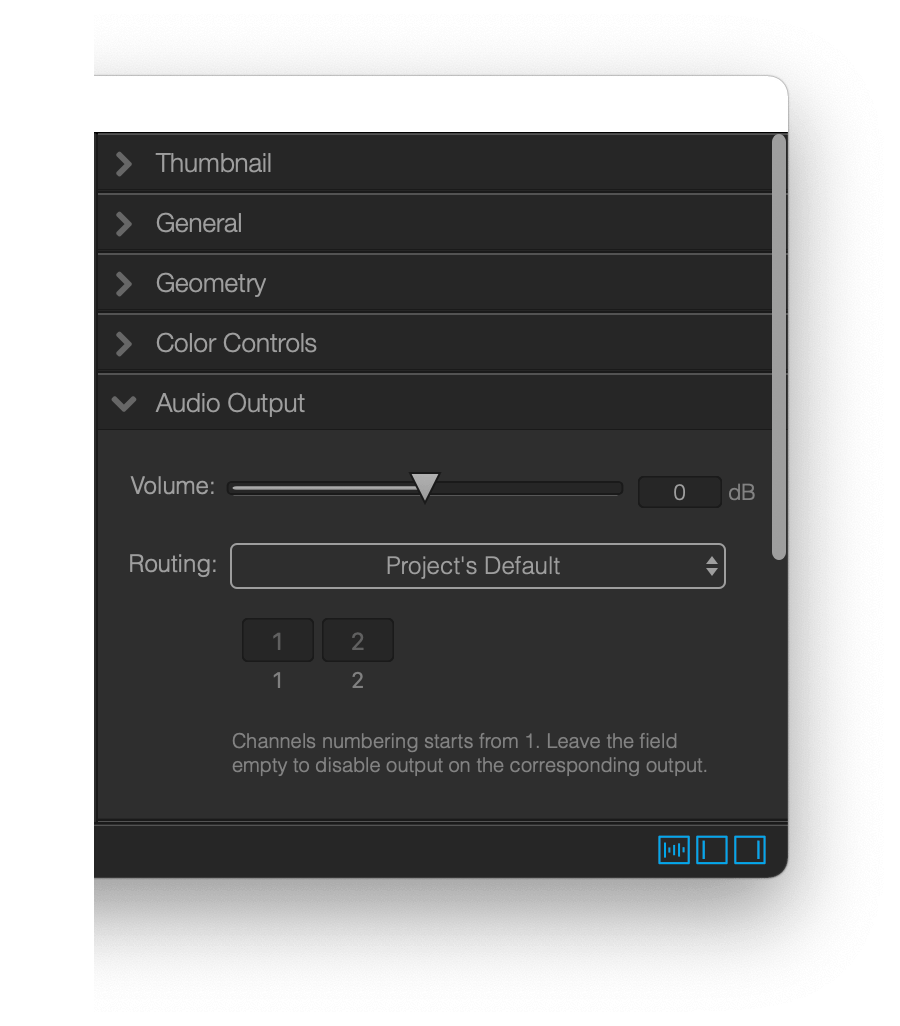
You can set the Volume here for each Cue.
Cues using the Output Routing what you set in Audio Output Preferences by default, but you can override this on a per-Cue basis here.
This option is only available if your Cue contains and audio track of course.
Transition & Fade
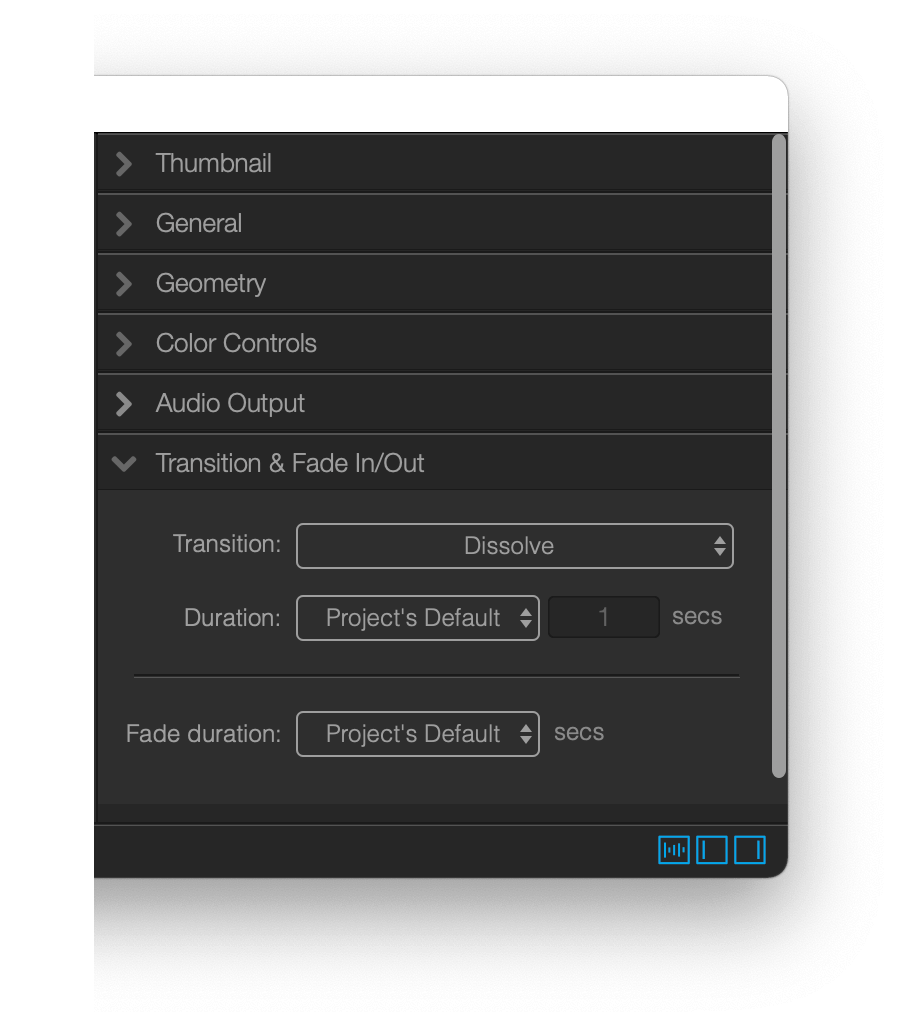
You can set the transition type Mitti should use when you are switching to this Cue, as well as the transition and fade duration.
Align to Next Minute or Hour
Still images, Syphon and NDI sources, so non-movie Cues have an option to automatically set their duration to be aligned to the Next Minute or Next Hour in their Source settings.
This feature is especially useful when you are using Mitti in LTC/MTC Timecode follower mode with Still Images - as a workaround - for setting the Start Time of Video Cues.