
Once you finished setup of your Cues you can start playback - either using Mitti's Standalone mode or even MTC/LTC timecode driven. These modes are available from the Playlist... Menu.
During Playback, you cannot create new Cues from the File menu - drag & drop from Finder still works - or remove existing ones.
Standalone Playback
Standalone Playback means Mitti will use its internal timeclock to manage playback. There are 2 additional options available when you use this mode - either by the icon next to the Play button or from the Playlist... menu:
- Loop Playlist: Mitti will jump back to the first item after it reached the end of the last Cue.
- Transition on Play Selected Cue and Jump to: Mitti will crossfade whenever you call the Play Selected Cue or a JUMP commands - more on these below.
You can define the default states of these options in the Playlist Preferences:
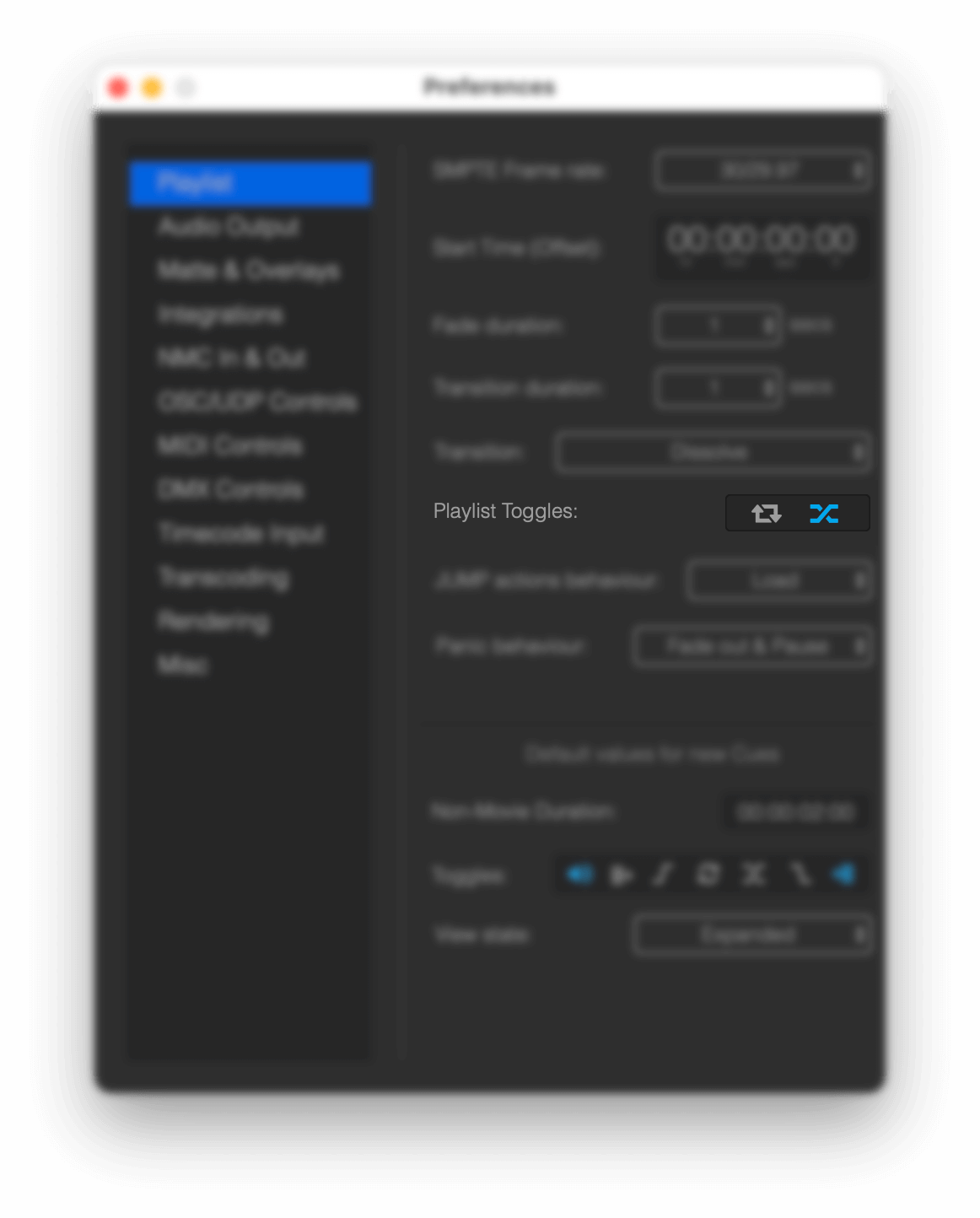
The Transition on Play Selected Cue... function always using the target Cue's transition settings.
Play/Pause
You can start and pause playback with SPACEBAR , while hitting ENTER will switch to and Play Selected Cue.
JUMP command
With the JUMP command you can switch to a specific Cue, and you can define what Mitti should do after the switch: either standby, or start playback of that Cue.
You can define the following behaviours in the Playlist Preferences:
- Trigger: if this option is selected, then whenever you call a jump action the new Cue will also start playback.
- Load: using this option, whenever you call a jump action the new Cue will be loaded, but playback will stop and wait on the first frame of the Cue.
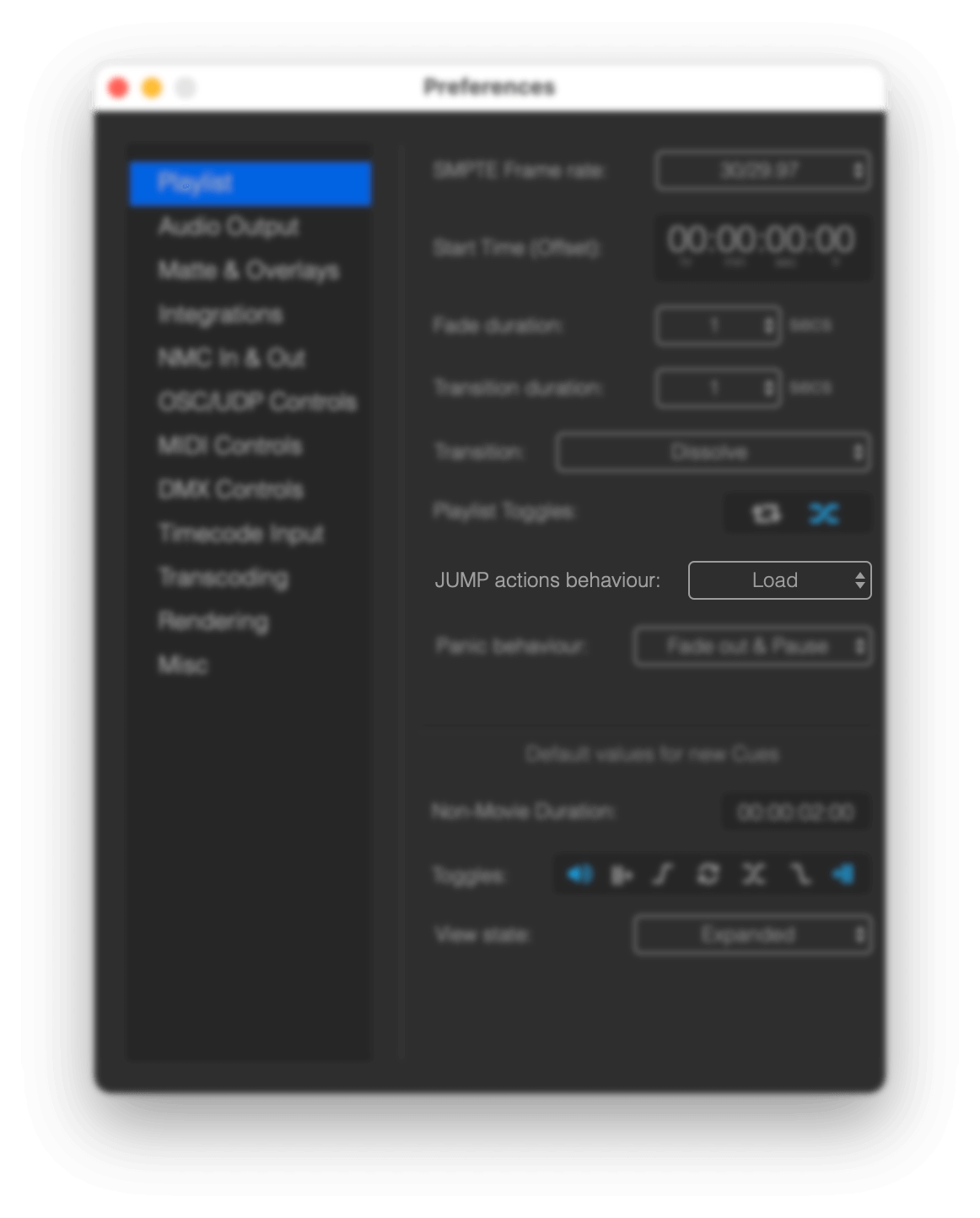
The following JUMP commands are available from the Playlist... menu:
- Jump to the Next Cue -
CMD+DOWN ARROW - Jump to the Previous Cue -
CMD+UP ARROW - Jump to the First Cue -
ALT+UP ARROW - Jump to the Last Cue -
ALT+DOWN ARROW - Jump to the Selected Cue -
SHIFT+ENTER - Double-clicking on a Cue
Panic/Kill
In case you need to "kill" the outgoing signal, there is an action called Panic - available from the Playlist... menu or by hitting CMD+ESC.
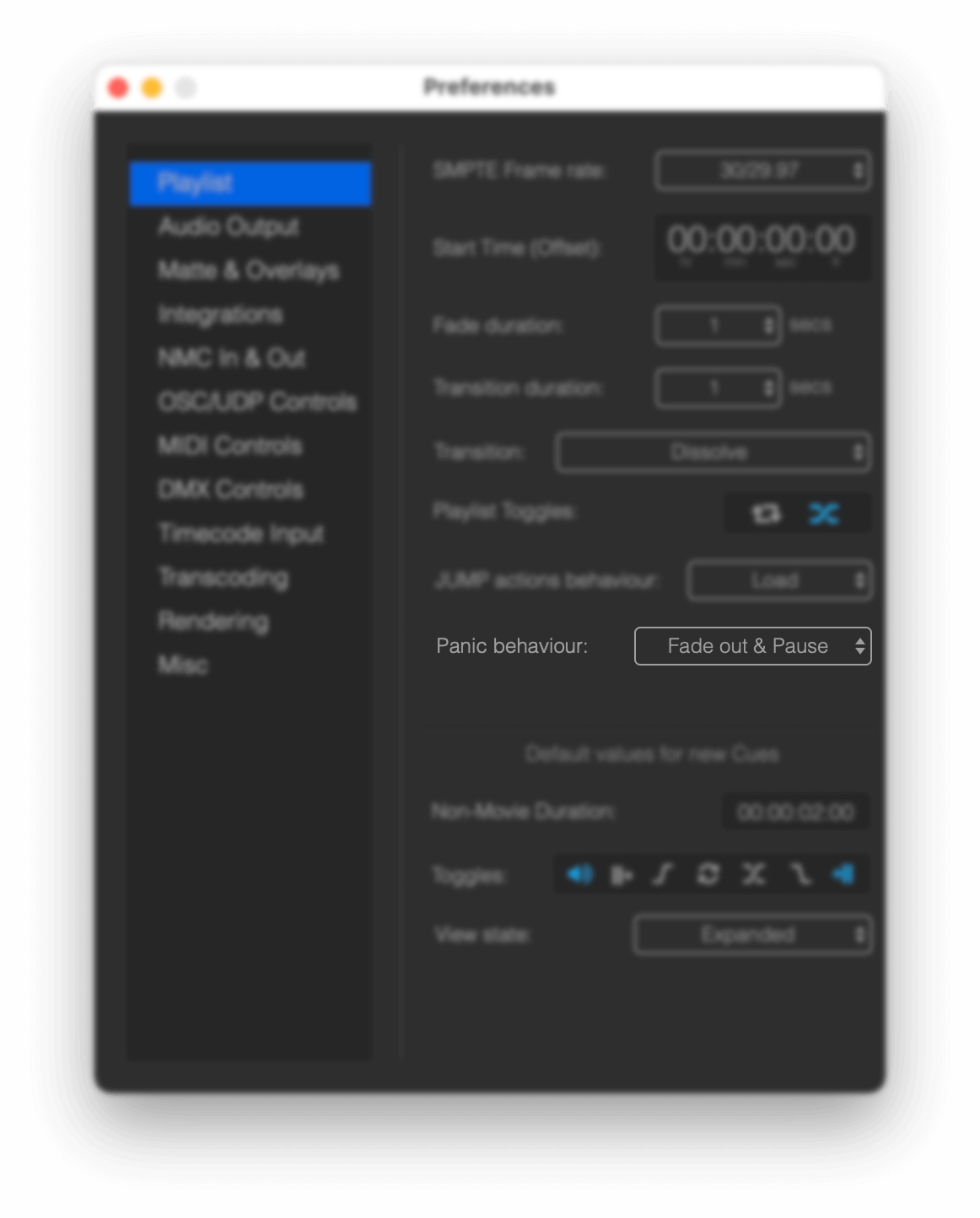
You can define the following behaviours in the Playlist Preferences:
- Fade out & Pause: Mitti fades out then pauses playback
- Fade out & Rewind: Mitti fades out, rewinds the cue and pauses playback.
- Fade out & Load Next: Mitti fades out, and loads the next cue.
MTC / LTC Follower
The playback can follow an external MTC or LTC timecode source, and there is an article dedicated to this topic -you can find it here.