
In Mitti 2, you can transfer seats of a perpetual license to a USB thumb drive of your choice, to create a USB Dongle. When you plug it into a computer it makes Mitti 2 registered - until you unplug it.
The USB drive needs to have a unique serial number, and it should use APFS file system - prerequisite to use APFS file system is to use GUID partition table.
We suggest to use a good quality USB dongle from a well-known brand, like:
- Adata
- Corsair
- Kingston
- Samsung
- Sandisk
Making a Dongle
To make a Dongle, your computer has to have a Mitti 2 perpetual license installed, and needs to be online. Then select the Registration... option from the Mitti menu, and click on the Manage Dongle License button.
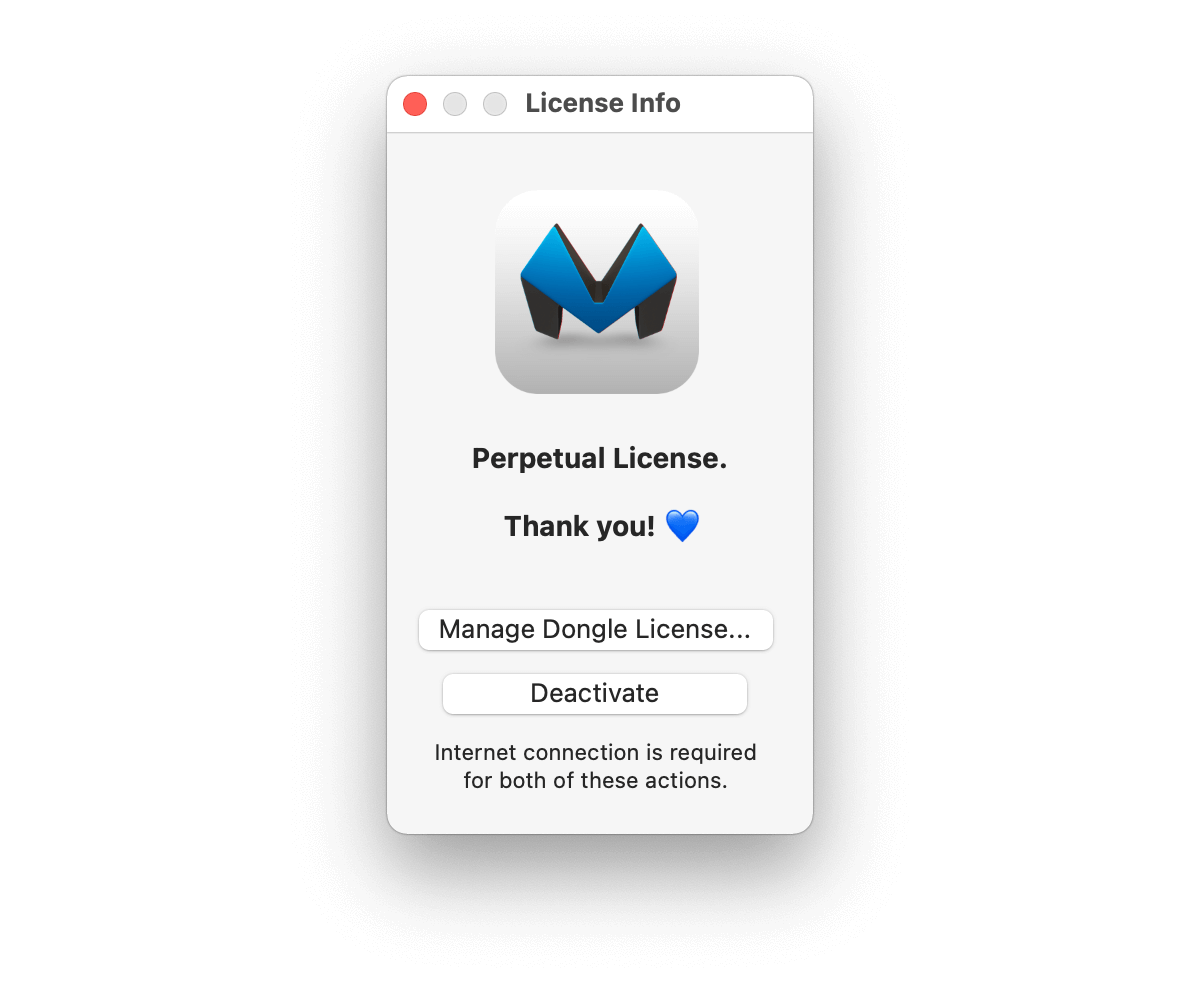
Once you click on the Manage Dongle License button, you will be asked to type your license key for verification purpose. After that, you need to select the destination USB thumb drive from the popup button.
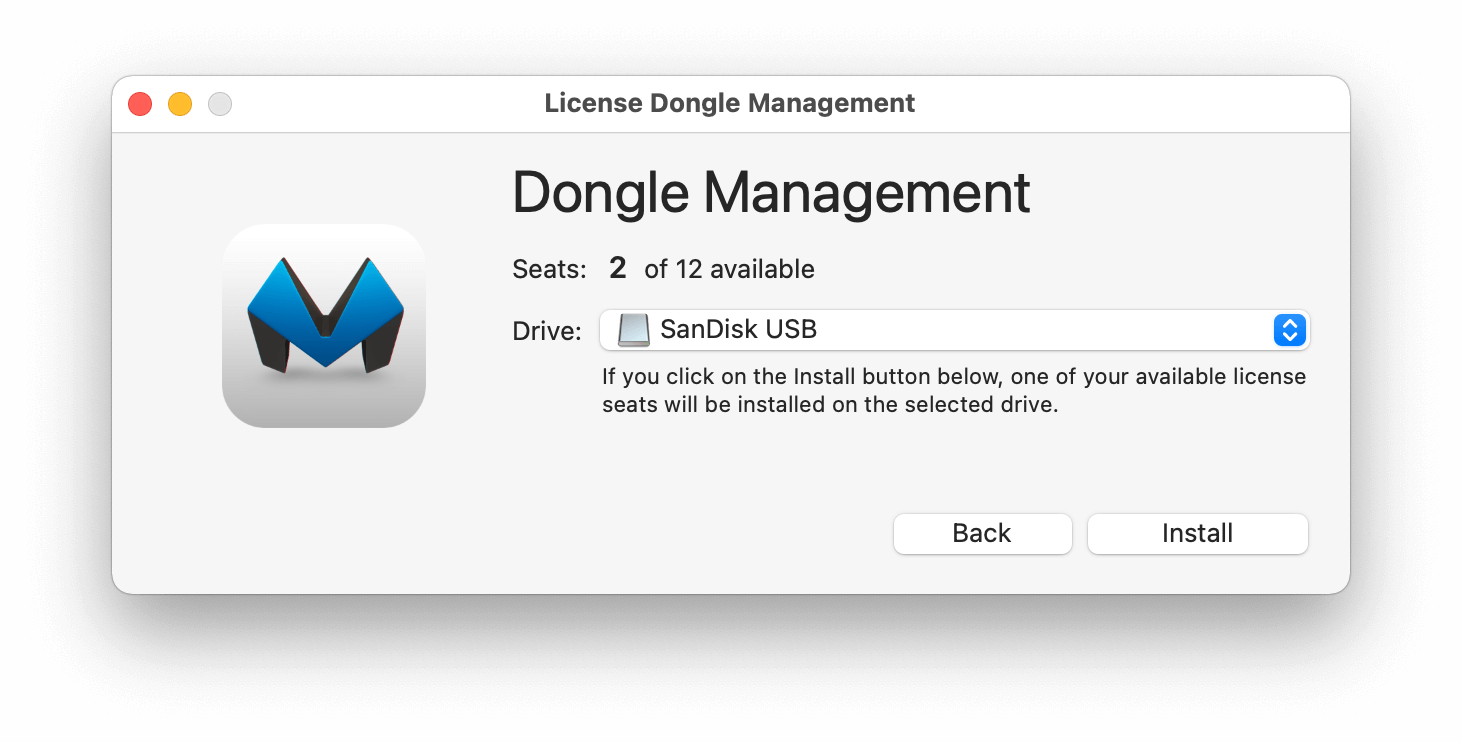
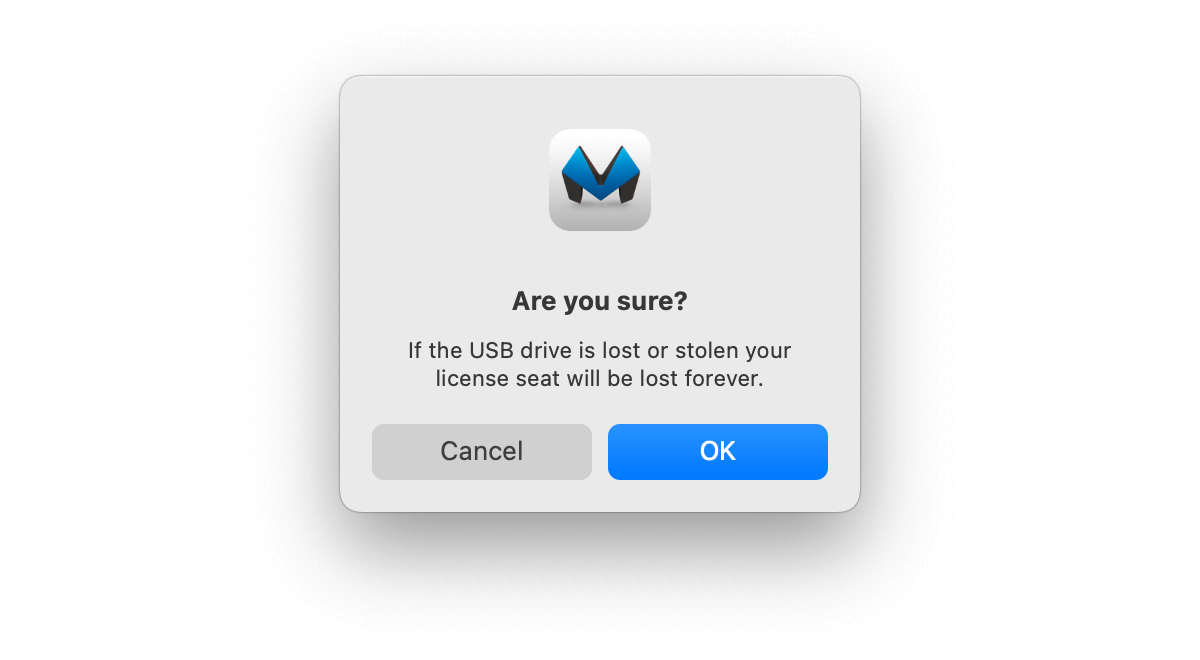
Click the Install button, then after you accepted the terms - If the USB drive is lost or stolen, your license seat will be lost forever. ⚠️ - one of your available license seat will be transferred to your USB thumb drive - this creates a Mitti License Dongle folder on the root directory.
If you modify that folder, or delete the drive, Mitti won't recognize the dongle anymore, so you need to re-create your dongle. However, during the process, the licensing server will detect your dongle, and will install back your previous seat, instead of installing a new one. Please keep in mind you still need to have at least 1 available seat to start the re-creating process.
Hiding the Mitti License Dongle Folder (Optional)
If you prefer to keep the Mitti License Dongle folder hidden from plain view on the USB drive (e.g. to avoid accidental edits or deletion), you can use a macOS Terminal command to hide it.
To Hide the Folder:
- Open Terminal.app
- Type the following command and press Enter:
chflags hidden /Volumes/YourDongleName/Mitti\ License\ Dongle
Replace YourDongleName with the actual name of your USB dongle.
The folder will no longer be visible in Finder, but it remains fully functional and Mitti will still find it as usual.
To Show the Folder Again:
- Open Terminal.app
- Type the following command and press Enter:
chflags nohidden /Volumes/YourDongleName/Mitti\ License\ Dongle
Replace YourDongleName with the actual name of your USB dongle.
Tip: You can also press Cmd + Shift + . in Finder to temporarily show all hidden files and folders.
Remove the license from a Dongle
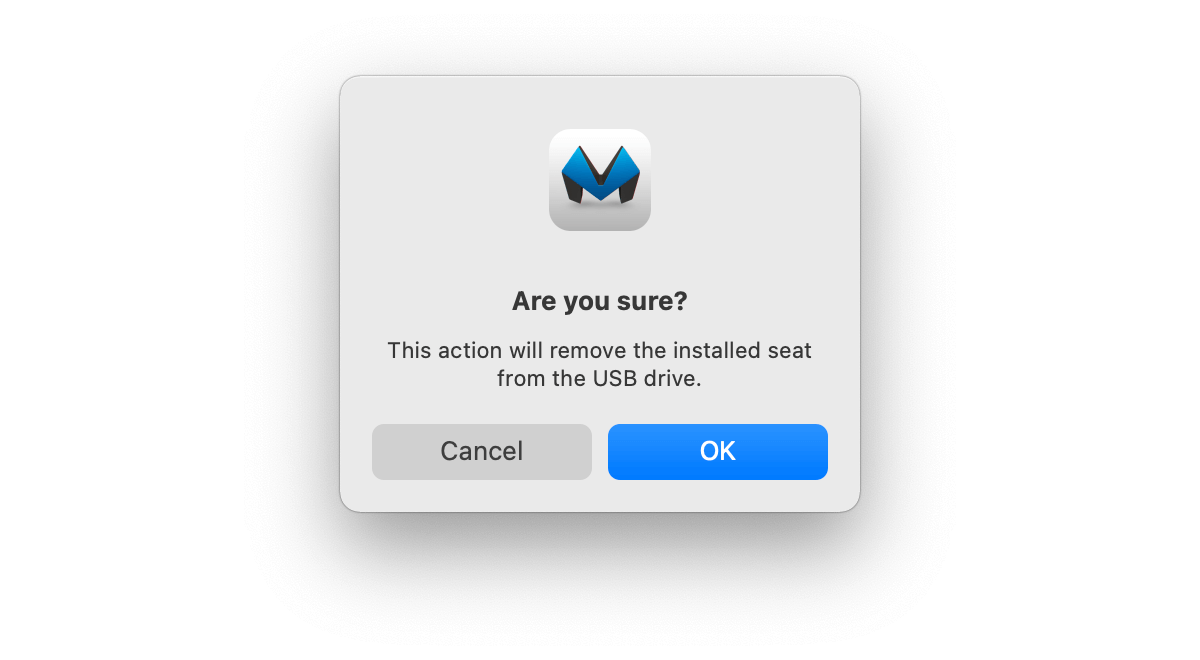
The process is very similar to the making - once you select the USB thumb drive from the list that contains your license already, click on the Remove button to remove it from the Dongle and set it back to your license key as a free slot.
What else you need to know
- To make a Dongle or remove a license from a Dongle you need an activated computer that is activated with the same license key.
- One license key has to always remain for computer activation, so you could manage your Dongles with that.
- Mitti only starts to use the Dongle if the computer has not hold an activated license already.
- One Dongle cannot hold multiple license keys or seats.
- You cannot make a Dongle from a Rental License.
- The Emergency Deactivate option isn't available for Dongles.